Area⇧⌘2
Window⌥⇧⌘2
Full Screen⇧⌘1
1
Capture
Press a shortcut and drag. It's copied and saved right away.
Capture any part of your screen, hide private details and make it look great. All in a few seconds.
✓ Free to use✓ No account✓ macOS 14 Sonoma or later

 1112
1112Your email. A card number. An API key. One share, and it's out there.
A plain picture doesn't point at anything. People miss the one number that matters.
Sharp edges and odd sizes look messy in a post, a doc or a slide.
One app, one shortcut, a few clicks. Here's the whole thing.
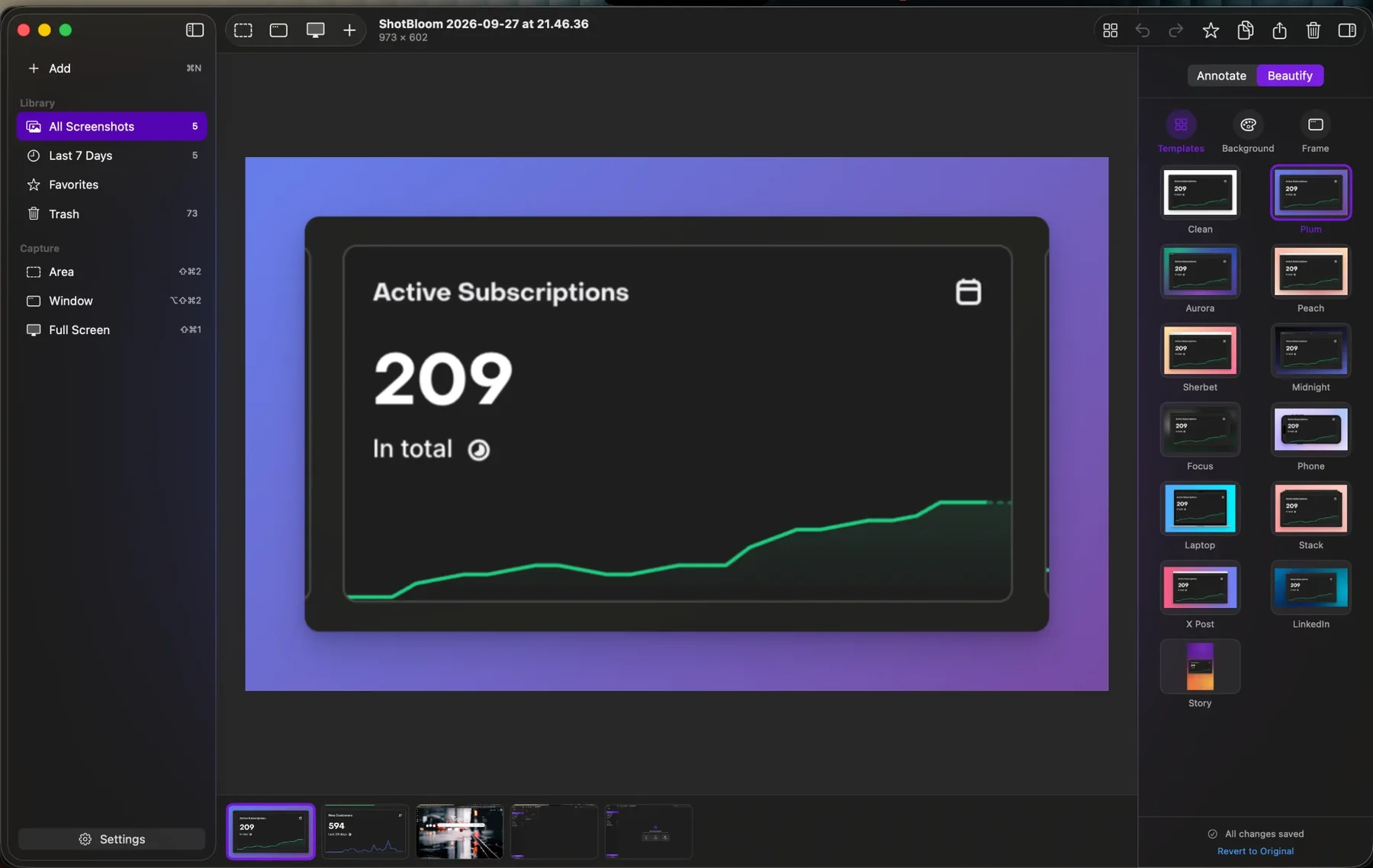
Press a shortcut and drag. It's copied and saved right away.
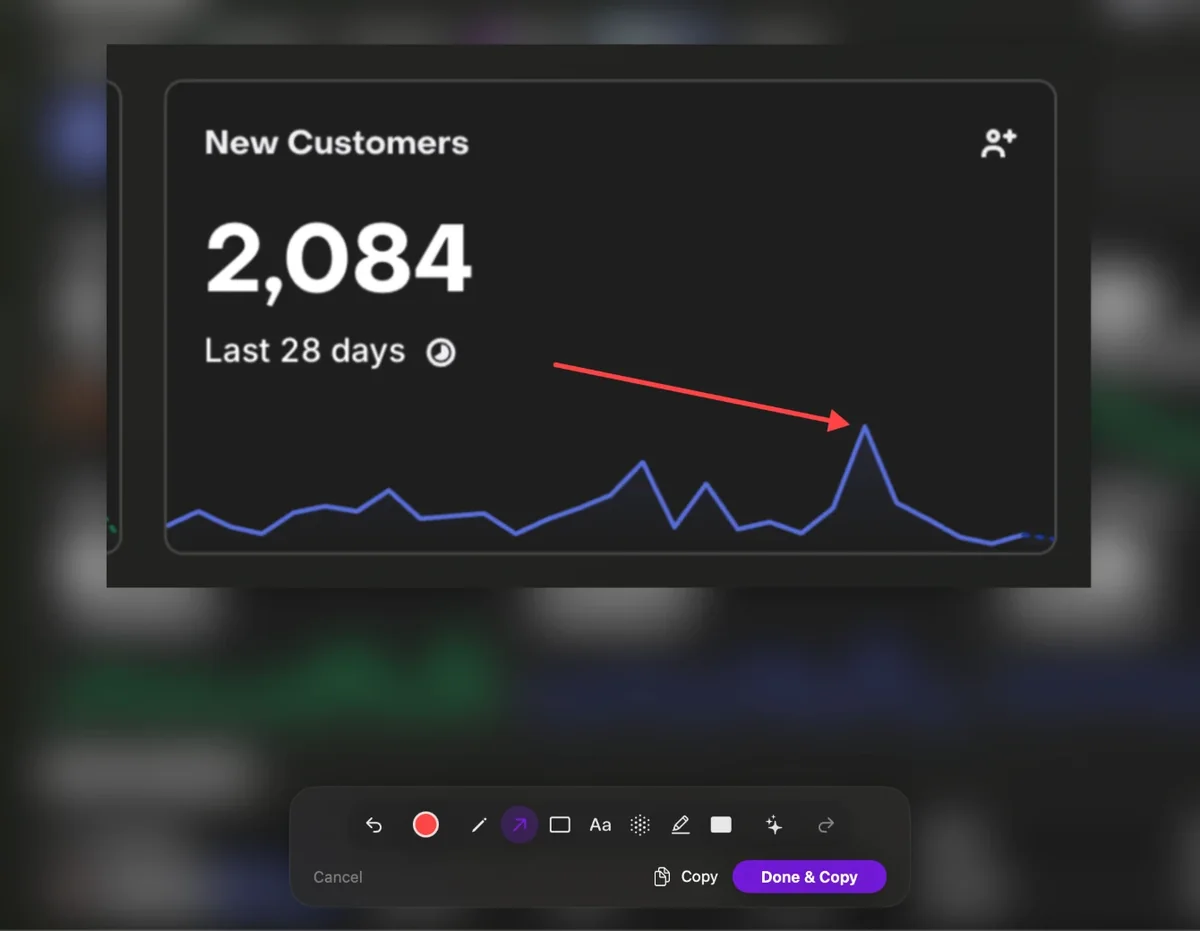
Arrows, text, blur and highlights. Click a word to hide it.
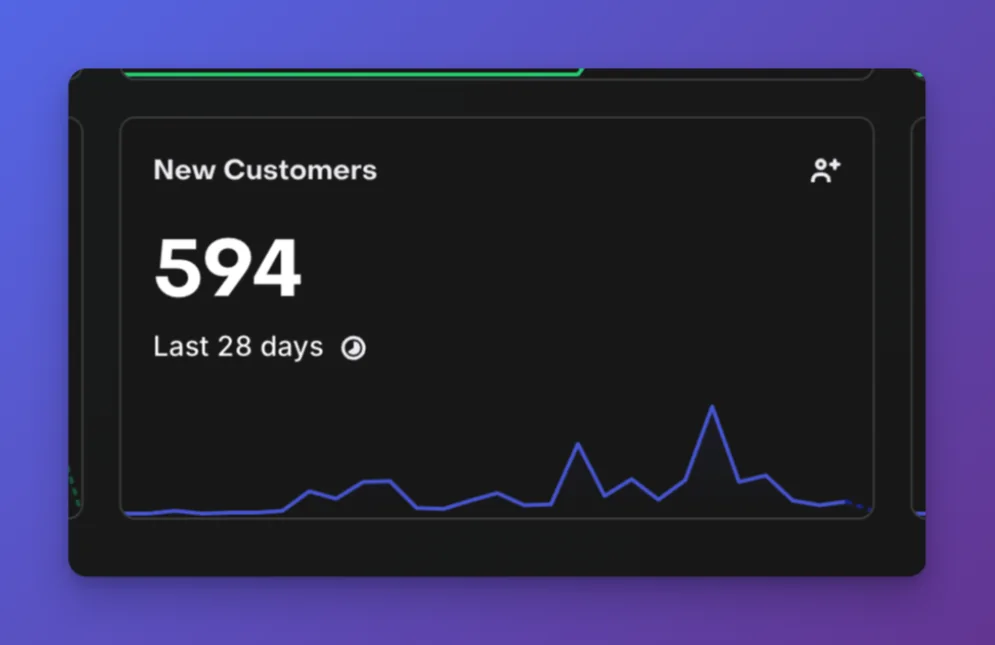
Pick a look. Background, frame and size are done for you.
Drag the handle to see the difference ↔
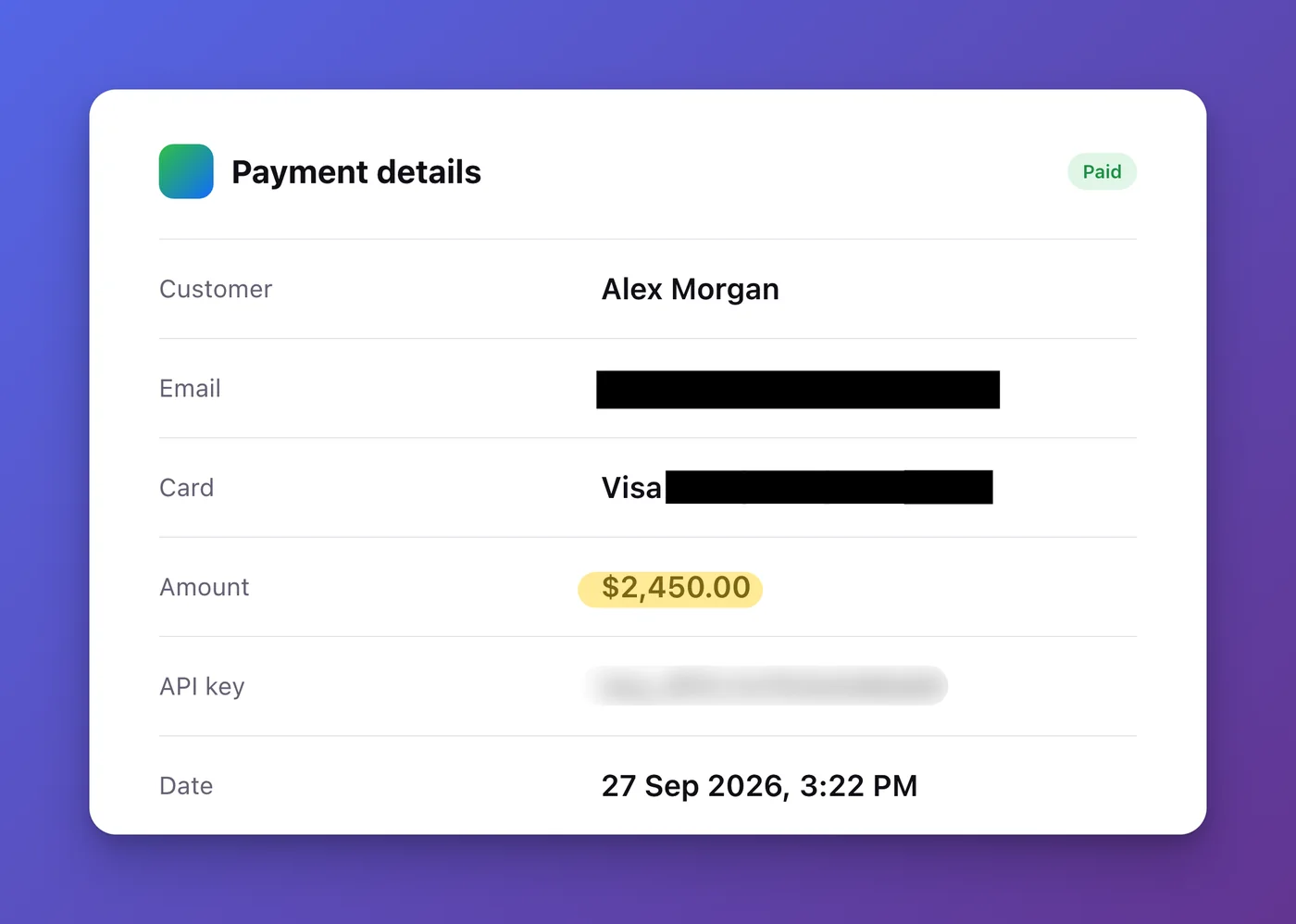
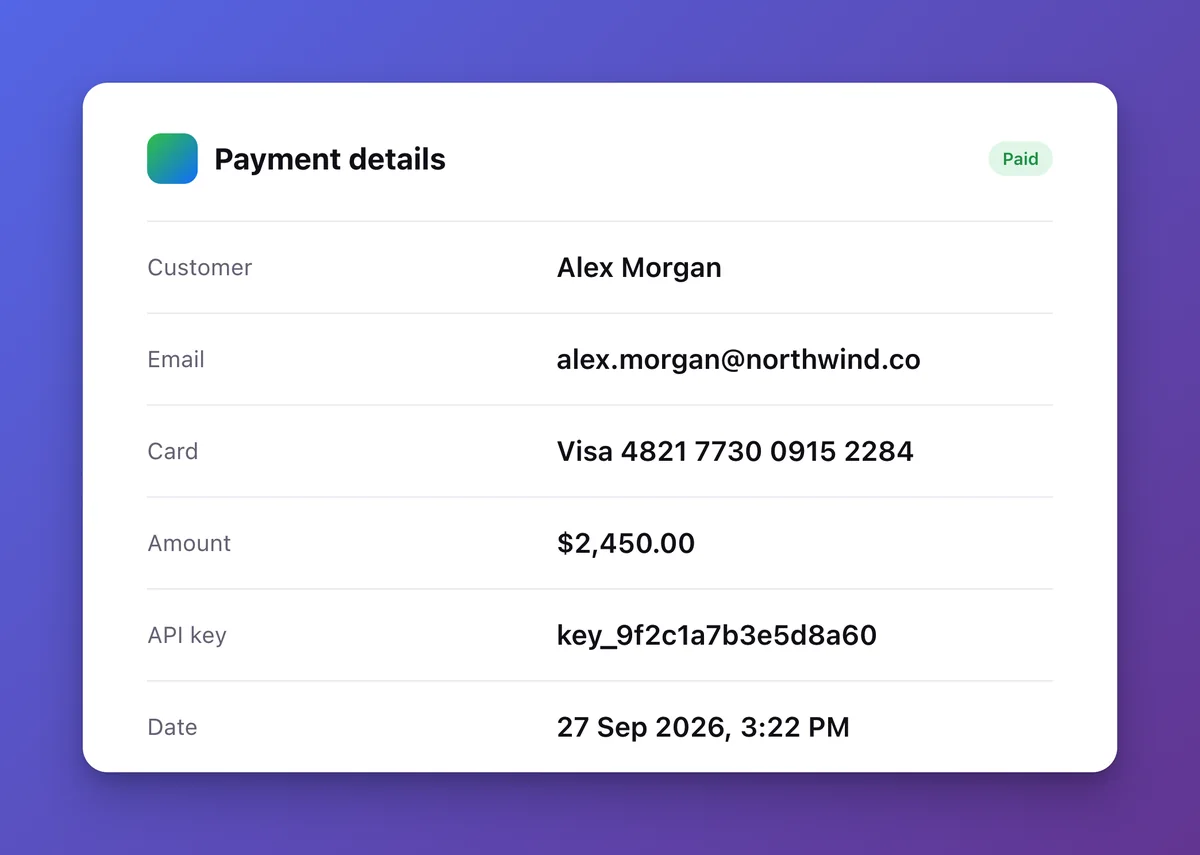
Tap a look and watch it change. Gradients, mesh backgrounds, window frames and device mockups, in one click.
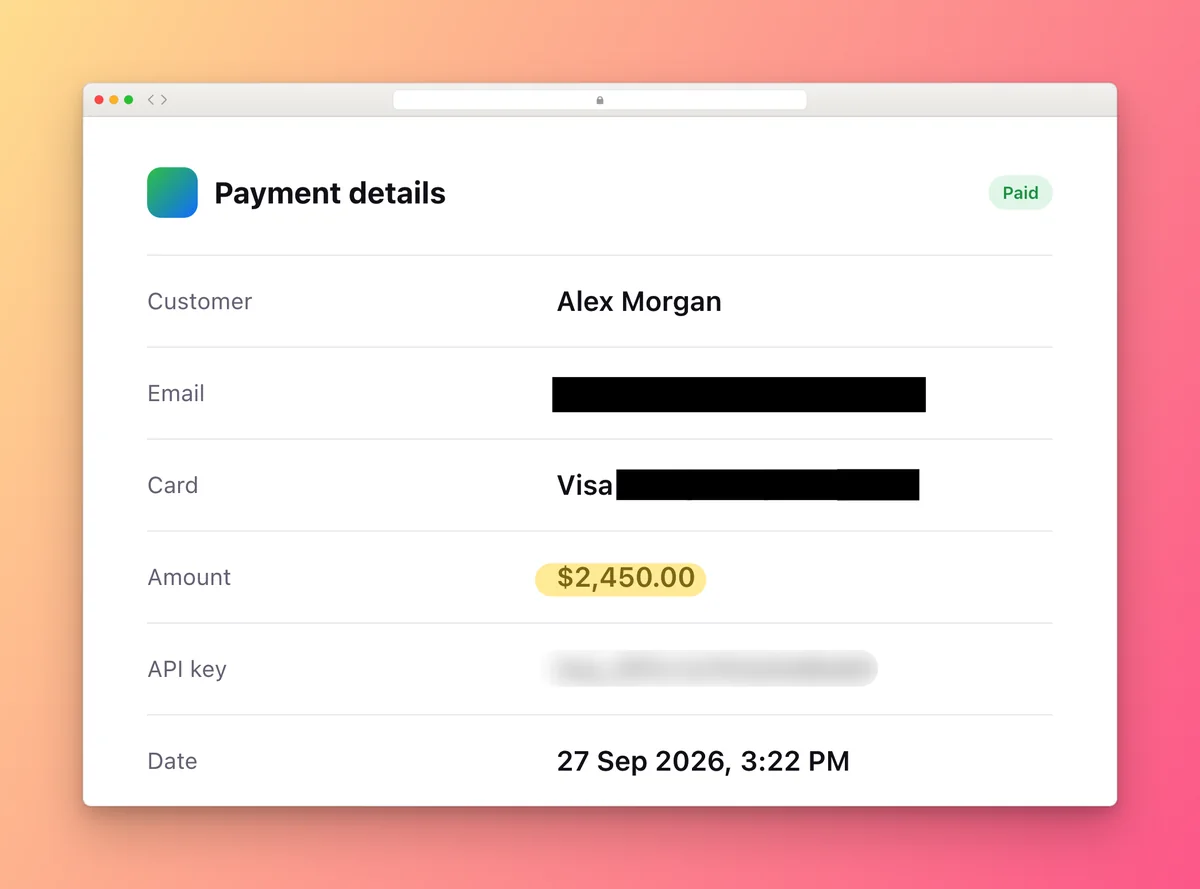
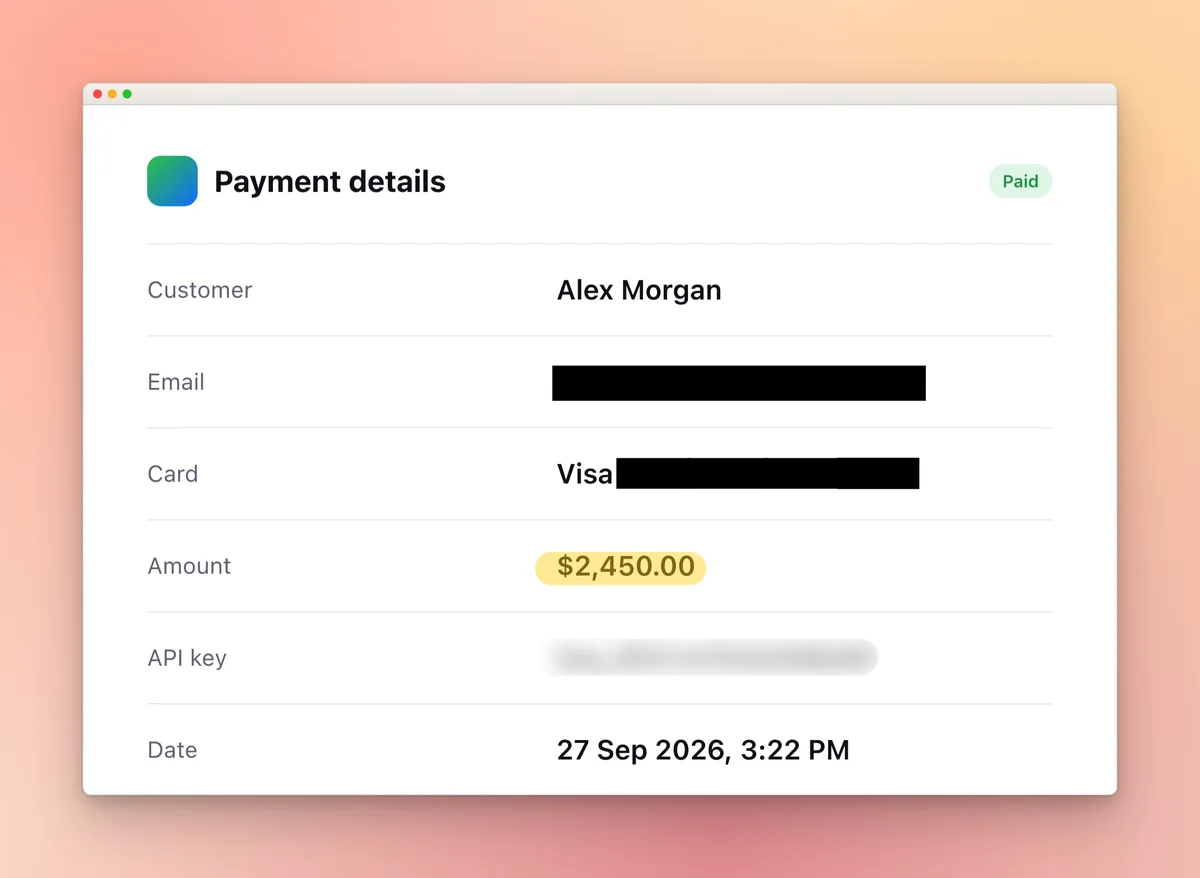
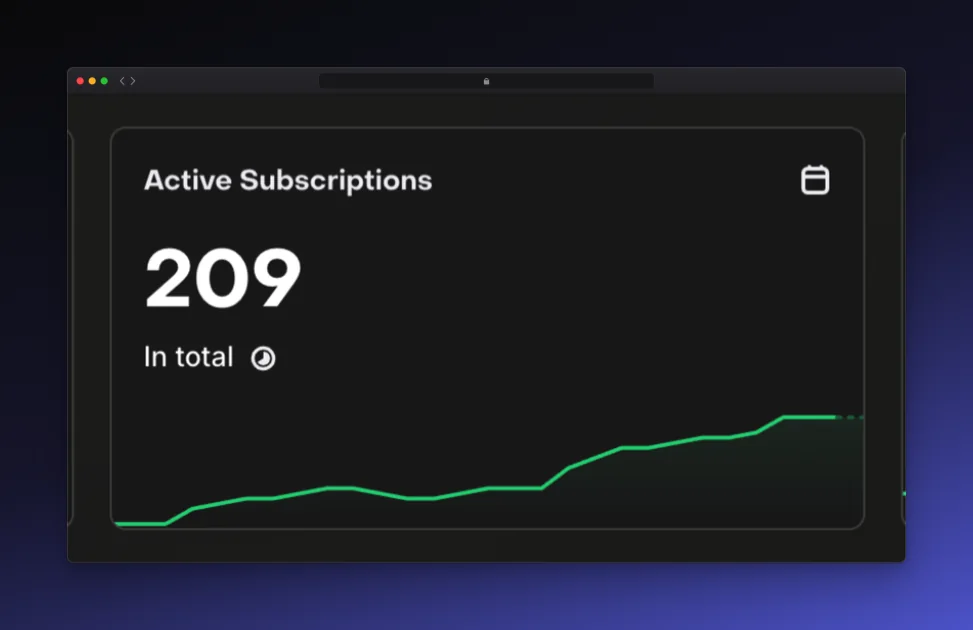
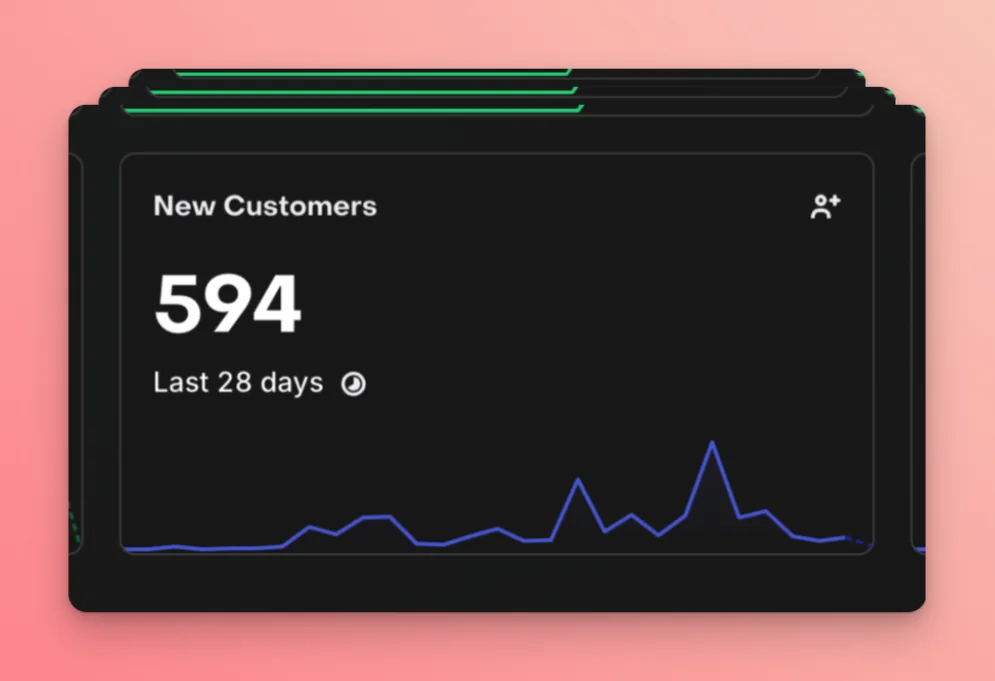
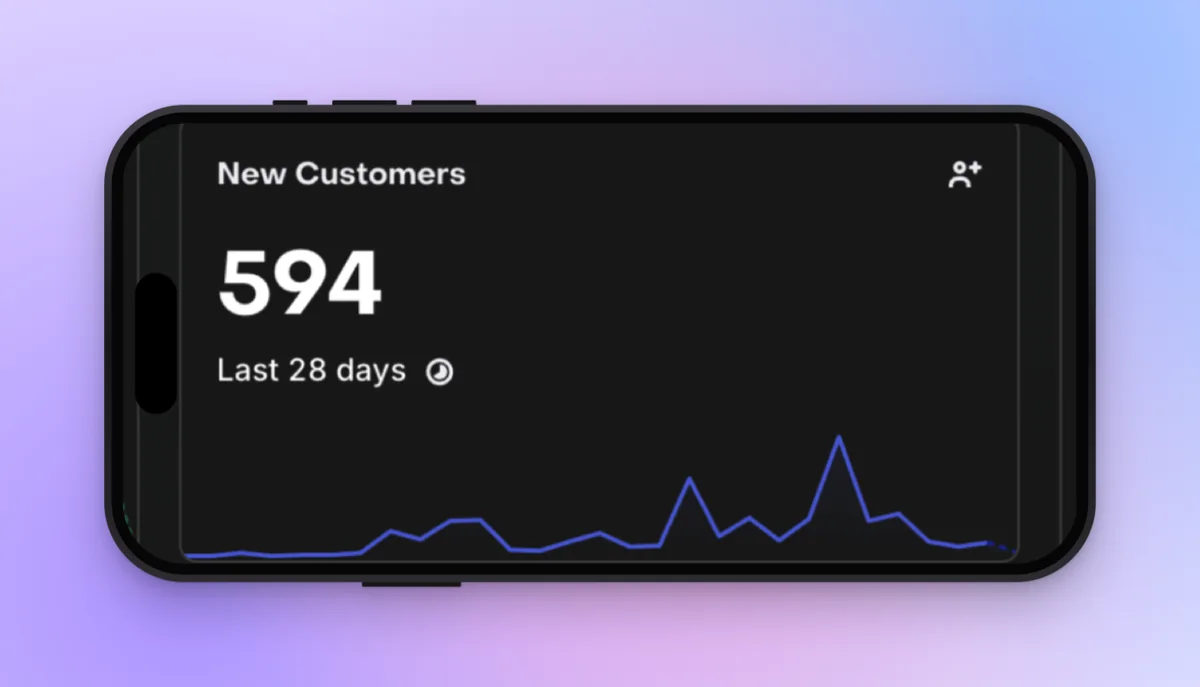
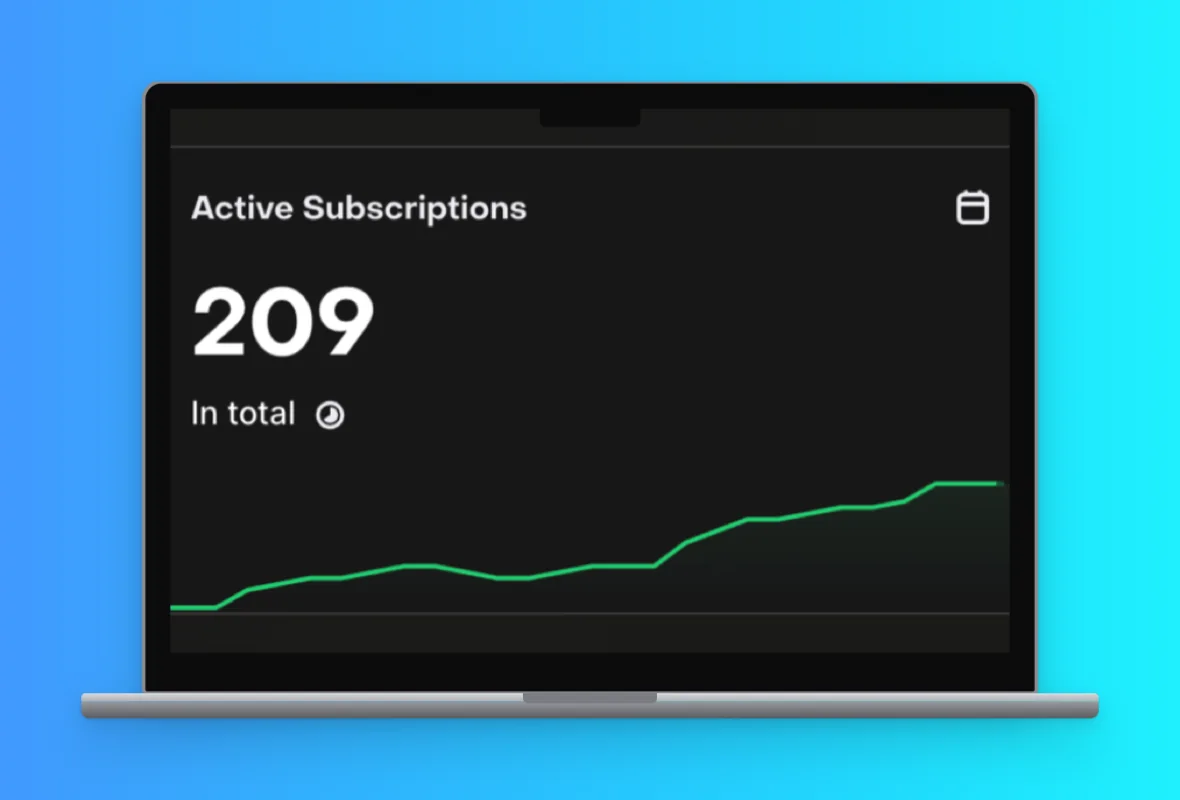
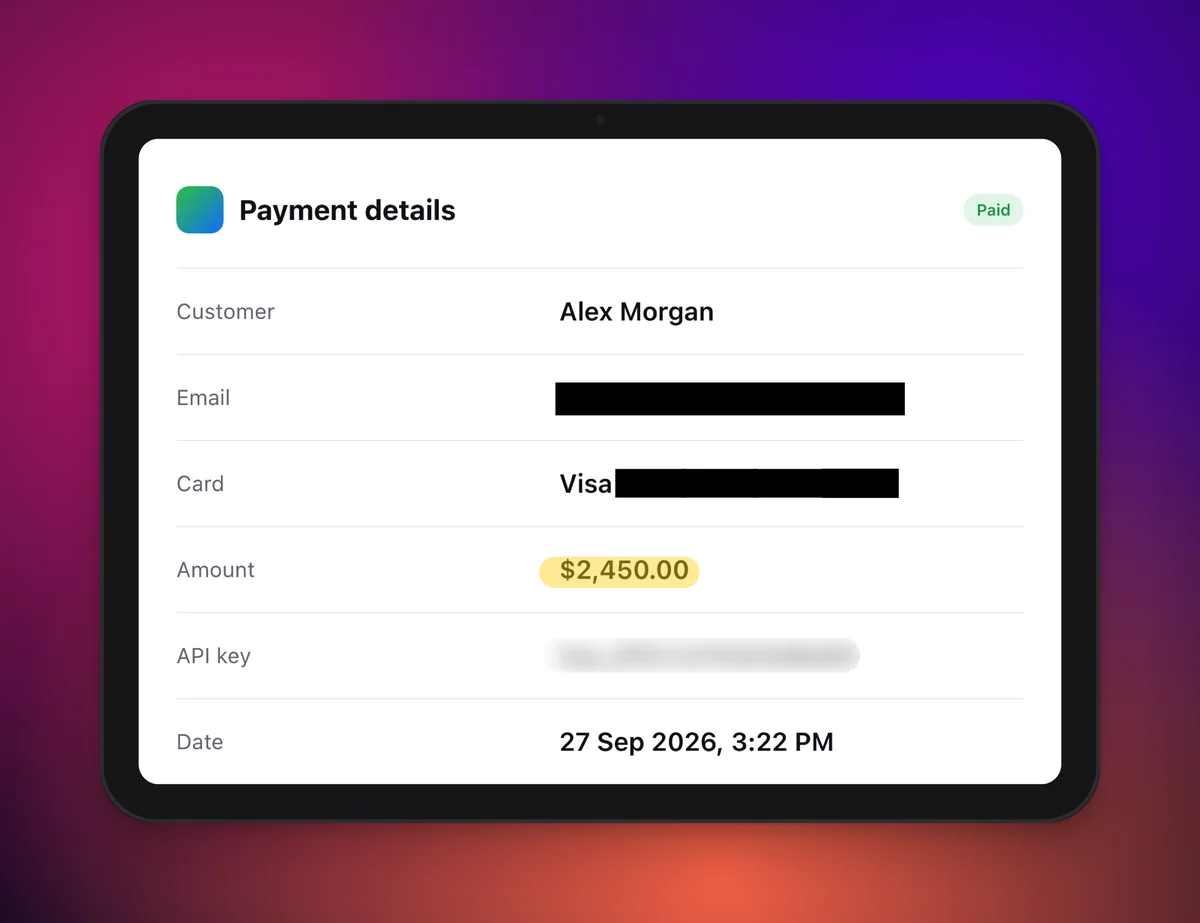
Everything you need to make a screenshot clear, safe and good-looking.
Turn on Redact and click any word. ShotBloom reads the text on your Mac and covers it.
Put your shot in a window, browser, phone, tablet or laptop frame.
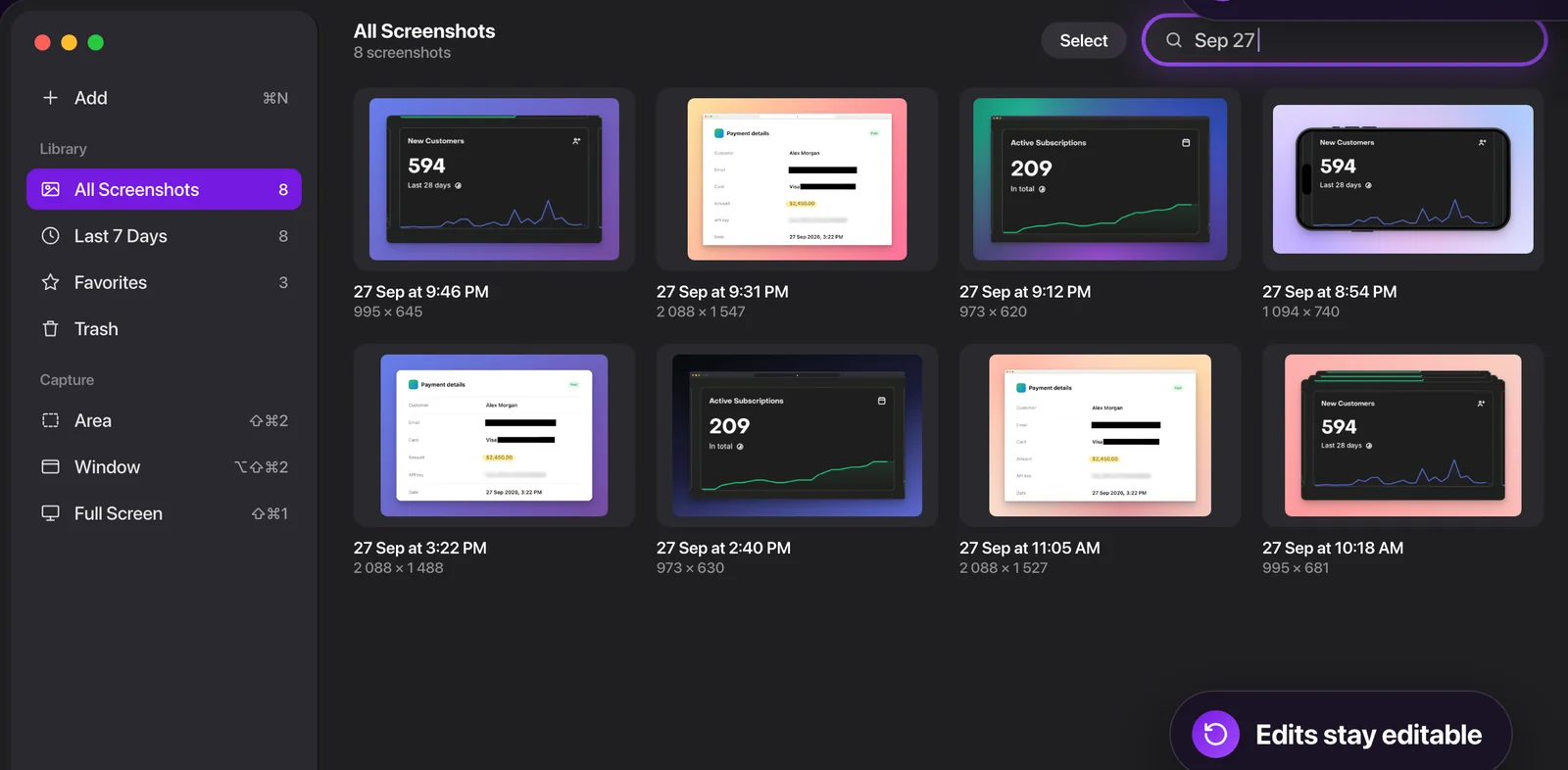
Every capture is saved. Search by date or time, like “Sep 27” or “3:22 PM”.
Paint over faces, emails or passwords to blur them.
Mark what matters. Strokes stay clean where they overlap.
Point things out in any colour and size. Move, resize and rotate text on the image.
Square, 4:5, Stories, 16:9, 1.91:1 and more. Your shot fits perfectly.
Reopen any screenshot and change the arrows, text or background later.
After each capture a small preview appears. Click Edit to mark it up right away.
Add pictures with ⌘N, paste them, or drop them on the window.
Works from any app and from the menu bar, even when the window is closed.
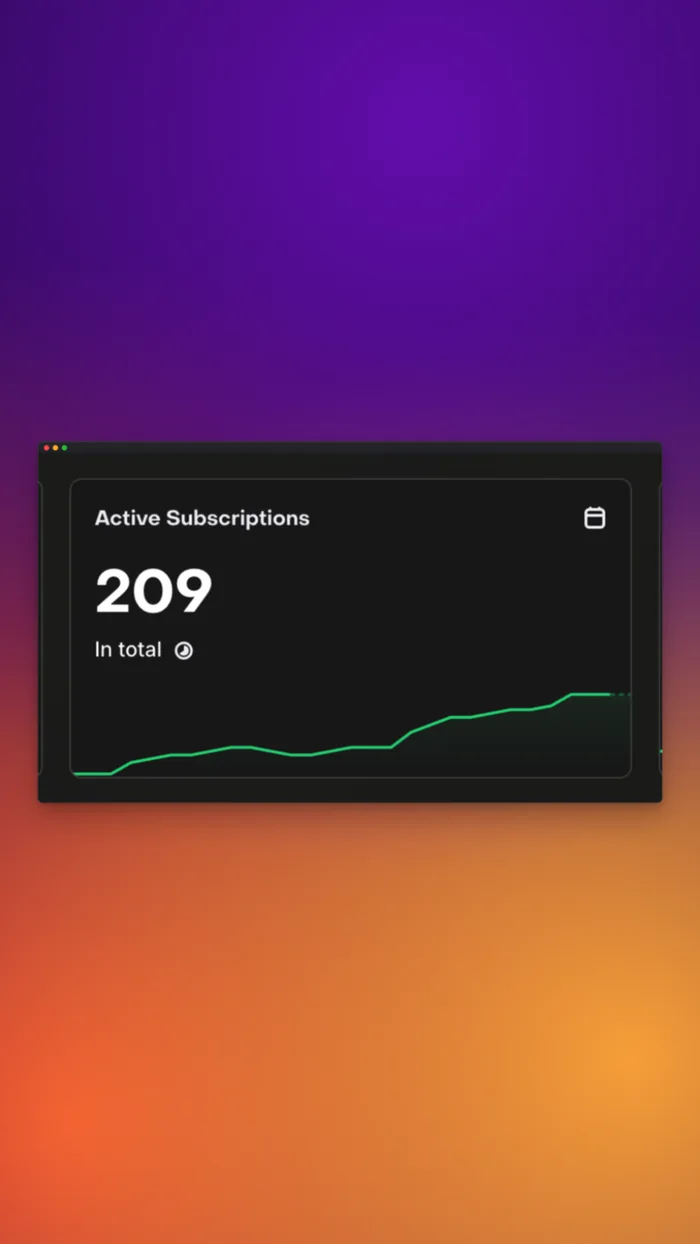
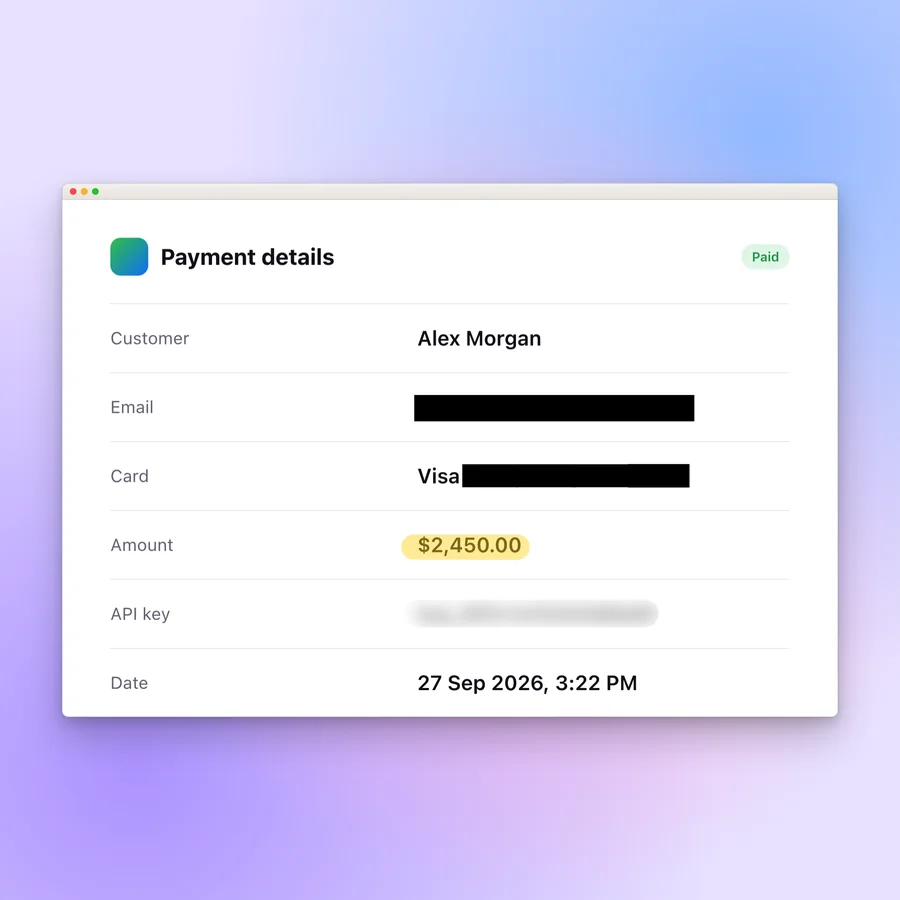
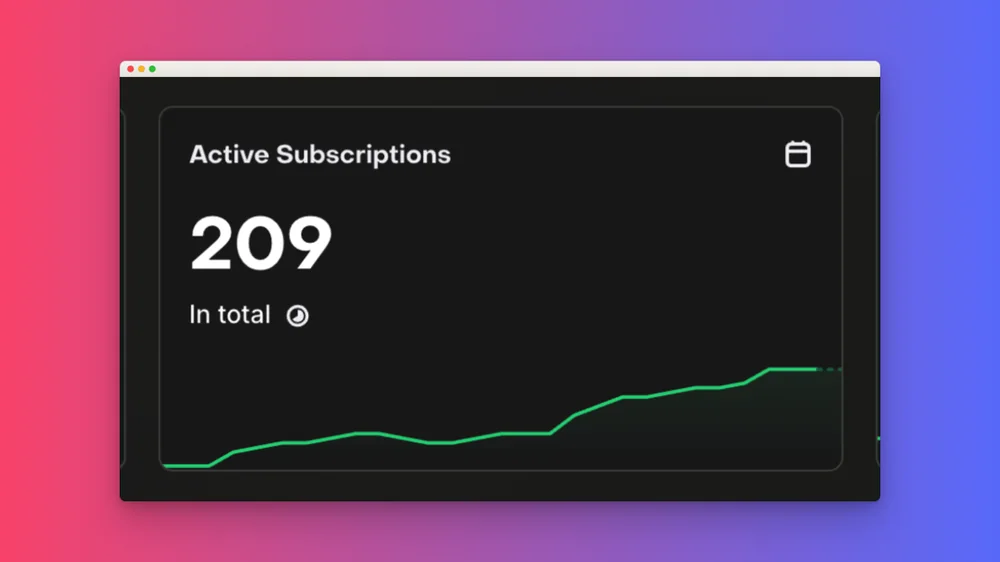
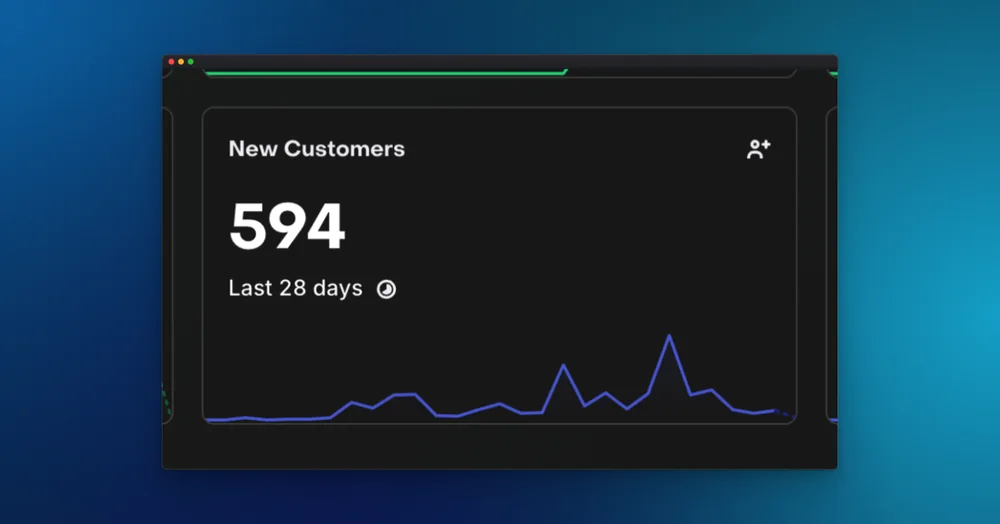
Open it and start capturing. No sign-up, no email.
Your screenshots are never uploaded to a server.
Click-to-redact finds words with Apple's on-device Vision.
Everything you need every day.
 Download free
Every look, frame and tool.
Upgrade inside the app. Prices are shown in the Mac App Store for your country.
ShotBloom is a screenshot app for Mac. It captures an area, a window or the full screen, lets you add arrows, text, blur, highlights and redaction, and can place the image on a background or inside a device frame so it is ready to share.
Yes, ShotBloom is free to download and use for capturing, arrows, shapes, pen, text, the library and a set of free backgrounds. Blur, Highlight and Redact are free on your first two screenshots. ShotBloom Pro unlocks every background, template, frame and mockup plus unlimited Blur, Highlight and Redact, as a monthly subscription or a one-time lifetime purchase.
ShotBloom works on Macs running macOS 14 Sonoma or later, on both Apple silicon and Intel. It is available on the Mac App Store.
No. Your screenshots stay on your Mac and are never uploaded. There is no account. Text recognition for click-to-redact runs on your Mac with Apple's Vision framework.
The built-in macOS Markup tools have no blur. In ShotBloom, capture with ⇧⌘2, click Edit on the preview, choose the Blur brush and paint over what you want to hide. Then click Copy or Done & Copy.
Open the screenshot in ShotBloom, choose Redact and click the word you want to hide. ShotBloom finds the word and covers it with a solid box. You can also drag a box and then move, resize or rotate it.
Yes. In the ShotBloom editor, click the sparkles button to choose a template, a solid colour, a gradient, a mesh background or your own image, then add a window, browser, phone, tablet or laptop frame and pick a size such as square or 16:9.
⇧⌘2 captures an area, ⌥⇧⌘2 captures a window and ⇧⌘1 captures the full screen. The macOS shortcuts ⇧⌘3, ⇧⌘4 and ⇧⌘5 keep working as before.
Every capture is copied to the clipboard and saved to the Pictures/ShotBloom folder, and it appears in the ShotBloom library, where you can search, favorite and edit it again.
macOS asks every screenshot app for Screen Recording access. ShotBloom only captures when you press a shortcut or click a capture button, and nothing leaves your Mac.
Free on the Mac App Store. Press ⇧⌘2 and see.